

Being enthralled in the Microsoft Partner World has enabled me to work with many Microsoft products on an intimate level. One of the most common questions I get asked is “How can I use my data?”. With the majority of my clients implementing SaaS based products such as Business Central, many are eager to begin reporting on their data in insightful ways.
If you don’t come from a technical background the idea of utilizing Power BI in conjunction with Business Central may be an intimidating task to overcome. In this guide I intend to give reporting pre-requisites, as well as outline the process of connecting Business Central to Power BI. This guide will also cover ideas such as Web Services, and Connectors.
/
Bottoms Up Approach
As a writer, I am going to assume that you – as the reader have no prior knowledge of Power BI and its capabilities. Below are some keys words that are applicable to this process. Taking this bottom-up approach will enable you to have the base knowledge that you need to have a successful journey.
- Power BI Desktop – Power BI Desktop is a FREE application that can be downloaded via your Office 365 Waffle or directly though the Microsoft Store. It is free to download and to create dynamic, and interactive reports. It is the best place to get started if you are new to data analytics and want to get your feet wet. Power BI Desktop is currently the primary place to BUILD Reports and offers the most functionality within Power Query Editor.
- Power BI Service – Power BI Service is the primary place where you VIEW and digest reports, and dashboards. It is going to be the best user experience for your organization to implement reports into their decision-making process. You can also create datasets, Datamart’s, and dataflows here which utilize Power Query Online (keep an eye out for future blog posts on this).
- Connector – Connectors are exactly what they sound like. They are what enables you as a user to connect to and utilize your data for reporting. Out of the box, there is a long and ever-growing list that Microsoft provides (Current Connectors). If you do not see a connector that you need, it is possible to create a custom connector to extract your data from a third-party software.
- Web Service – A Web Service is a Business Central centric exposure that will allow you to publish additional pages to be visible for use within Power BI. We will cover more of this in the section titled “Gimmie More, Gimmie More (Web Service Exposure in Business Central).
- Power Query – Power Query is a data transformation and data preparation tool integrated within Power BI, a business analytics service by Microsoft. Power Query is designed to help users gather, clean, transform, and reshape data from various sources before it’s loaded into Power BI for analysis and visualization.
Connecting Power BI to Business Central
Now that you have a basic foundation of important vocabulary, here are the associated steps to get you started when connecting Power BI to Business Central.
- Ensure you have Power BI Desktop installed. If you don’t, here is the link to the download via the Microsoft Store.
- Open Power BI Desktop
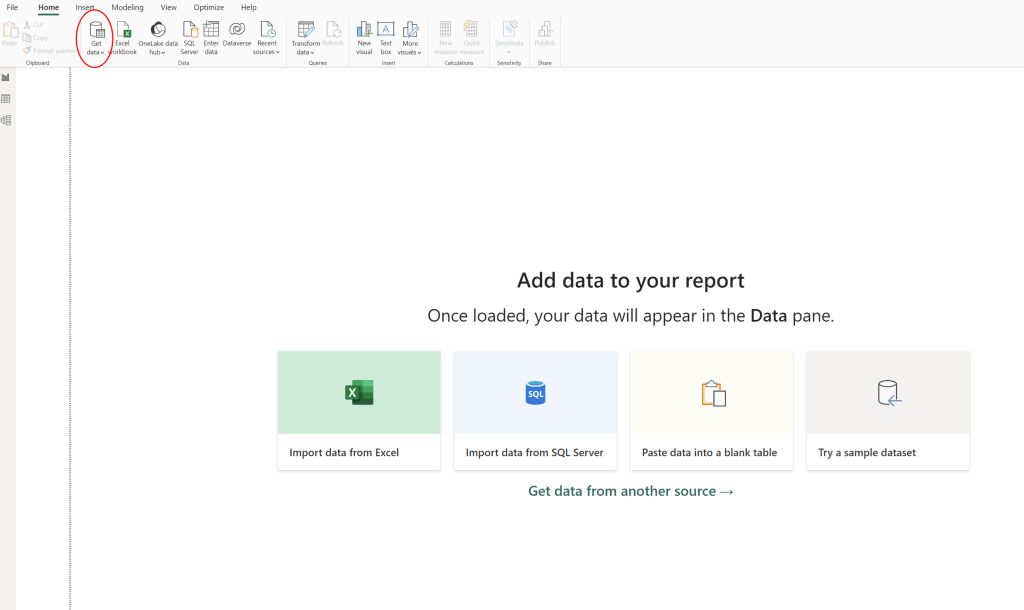
- Choose “Get Data” from the Ribbon on the Home Tab. If you choose to hit the carrot down arrow, choose “More” from the list
4. Search or Scroll for Business Central. You will want to ensure that you choose “Business Central” and not “Business Central (On-Premise)
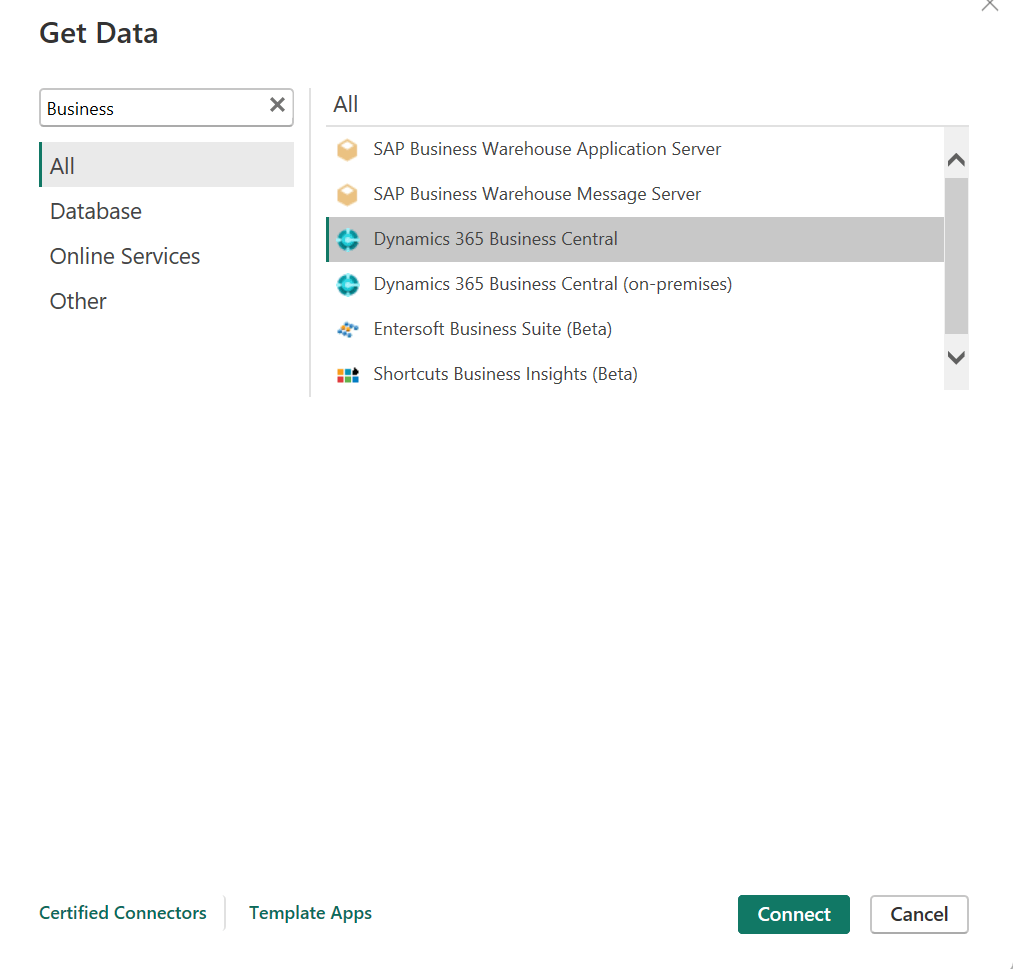
5. Once you hit “Connect” you will then be prompted to Enter Credentials. You will choose “Organizational Account” and log in. You will want to ensure that the username/email and password you log in with has an associated Business Central License.
6. Once you are connected you will then see a breakdown collapsible chart that goes:
Environment > Company > API Type (Advanced, Standard, and Web Service)
7. You will choose Web Services and expand the list. From here, you will see everything that is available to you out of the box, already exposed from your Business Central instance. If you aren’t quite seeing what you need, continue on to the next section. Else, choose what you need by selecting the check boxes associated with each page and hit “Transform” or “Load”. “Transform” is going to open up the Power Query Editor for you which will enable you to clean and transform your data into your desired configuration. “Load” will load your data as it is, with no clean up. If you choose this option and later change your mind, you can always return to the Power Query Editor by hitting “Transform Data” on your Home Tab. Be sure to always close and apply your changes to ensure successful and dependable results.
8. You can now begin to report on your data model. Be sure to add relationships between your queries to enable dynamic activity within your report pages. Also — Power BI does not Auto Save! Save! Save! Save!
/
Gimmie More! Gimmie More! (Web Service Exposure in Business Central)
At this point, you have hopefully successfully connected Business Central to Power BI. You may have even created a report or two. In this section I would like to cover exposing more Web Services within Business Central to enable you to create more engaging reports that cover a wide variety of departments and business requirements. Note that Web Services may not always be the best solution for your business. If you have mass amounts of data and notice poor or slow performance when utilizing Web Services, you may want to consider a Data Lake or Warehouse.
In order to expose more Web Services from Business Central you will follow these steps:
- Open Business Central in your Browser
- Click on the search bar in the upper right-hand corner.
- Search for “Web Services”
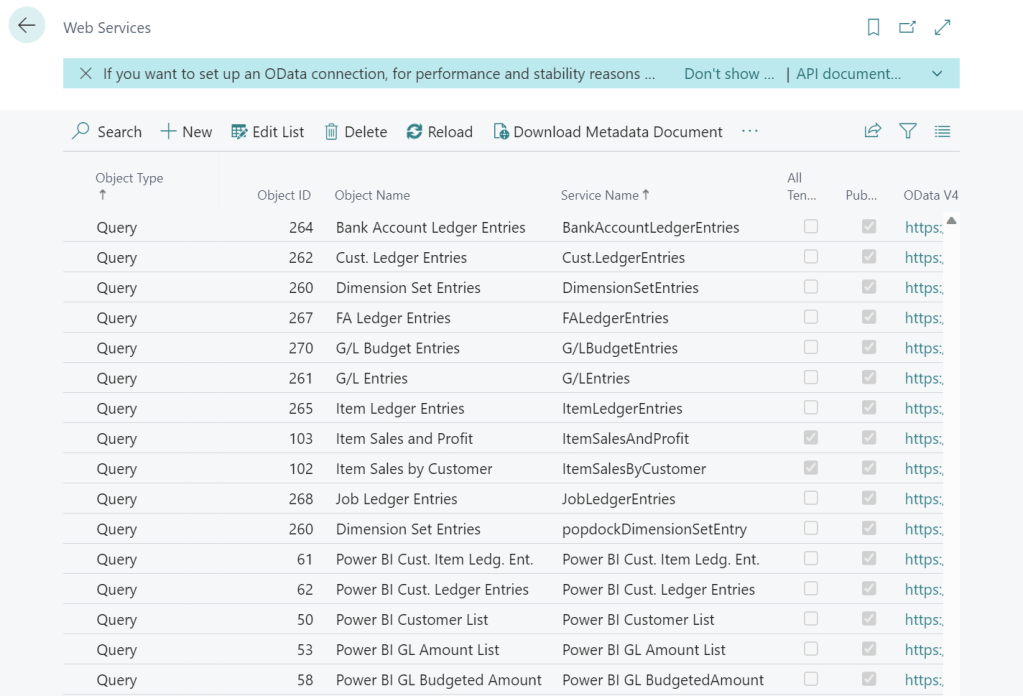
4. Select “New”
5. You will then we presented with a new line on the table. From here, you will select “Page” from the drop-down menu under Object Type. Then, Under Object ID you will enter the Page number. If you do not know the page number, you can select the down arrow under Object ID and select “Select from full list”. This will allow you to search for the page you want to report against.
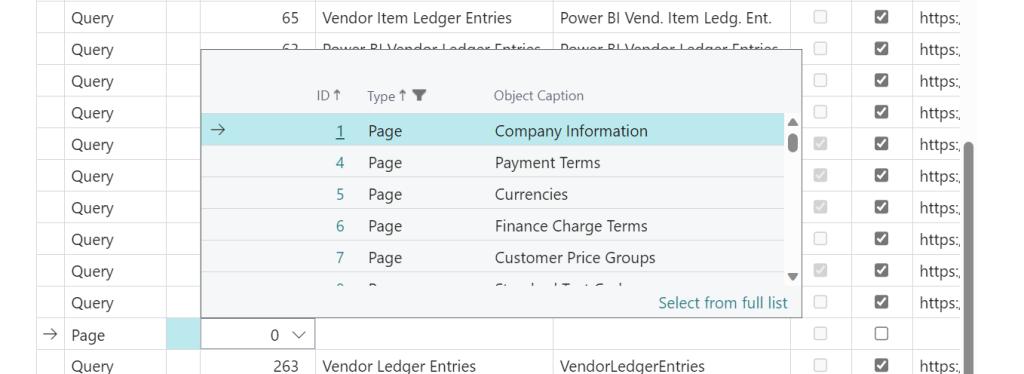
6. Once you have your Object ID/Page Selected Business Central will automatically populate the Object Name Column for you with the page name that Business Central Utilizes.
7. Next you will give your Web Service a “Service Name”. This is the name that Power BI will “see” so it is important to give your Web Service a meaningful and constructive naming convention. Business Central does not like spaces in your Service Name. See my example below.

8. The last thing you will need to do is publish your Web Service. You can do this by selecting the second box to the right of the Service Name. Once you click off this link you will then notice an OData Link was generated and your Web Service was successfully published. If you are feeling froggy, you can hit the “Reload” button on the Web Services Page.
9. Next time you open Power BI Desktop and go to “Get Data” and use the “Business Central” Connector you should now see the Web Service you exposed in the list of available entities.
NOTE: Web Services are tenant wide. If you have multiple companies, this Web Service will now be exposed for all companies.
/
Wrap Up
In conclusion, integrating Microsoft Dynamics 365 Business Central with Power BI opens a realm of possibilities for data-driven decision-making. This seamless connection allows businesses to transform raw financial and operational data into meaningful insights, fostering informed strategies.
By following the step-by-step guide outlined in this blog, you can establish a robust bridge between Business Central and Power BI. As you harness the power of these two tools in harmony, you’ll not only streamline reporting processes but also empower your organization to navigate complexities with agility and precision. Embrace this integration and embark on a journey towards a more efficient and data-enriched business future.




Leave a comment