
Deadline to Migrate Datamart to Data Warehouse in Fabric is October 1st 2025.
There are currently two ways to Migrate a Datamart to a Datawarehouse. Using Accelerator PowerShell Scripts and Manually. Personally, I prefer the manual way – less steps, less time & less chance for error.
If you would like to use the PowerShell Scripts, I recommend that you watch this awesome video from Tales from the Field. If you would like to migrate manually check out my post releasing on Thursday September 11th.
In this post I will cover where to find data pieces to enable the PowerShell Script to run.
Step 1:Find PowerShell Inputs (Schema and Table Creation)
In order to run the PowerShell Script successfully you will need to collect a few pieces of data. I recommend putting these somewhere safe as we will be copying and pasting them later as the PowerShell Script runs.
Datamart Server Address:
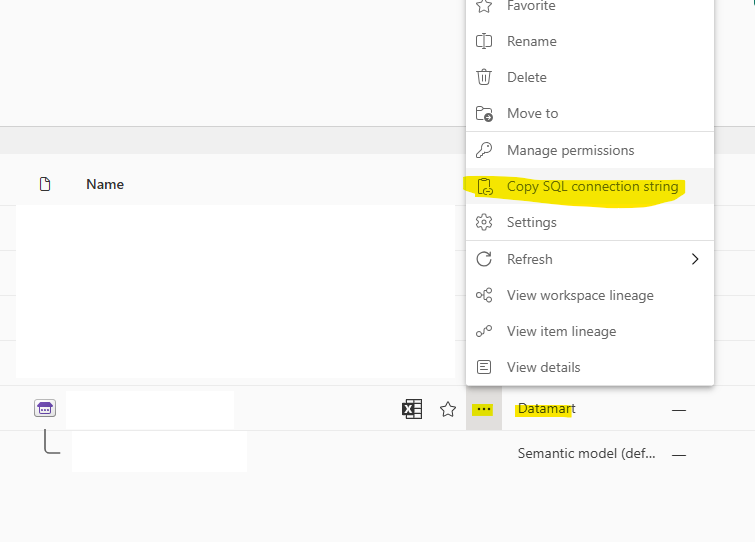
Datamart Name:
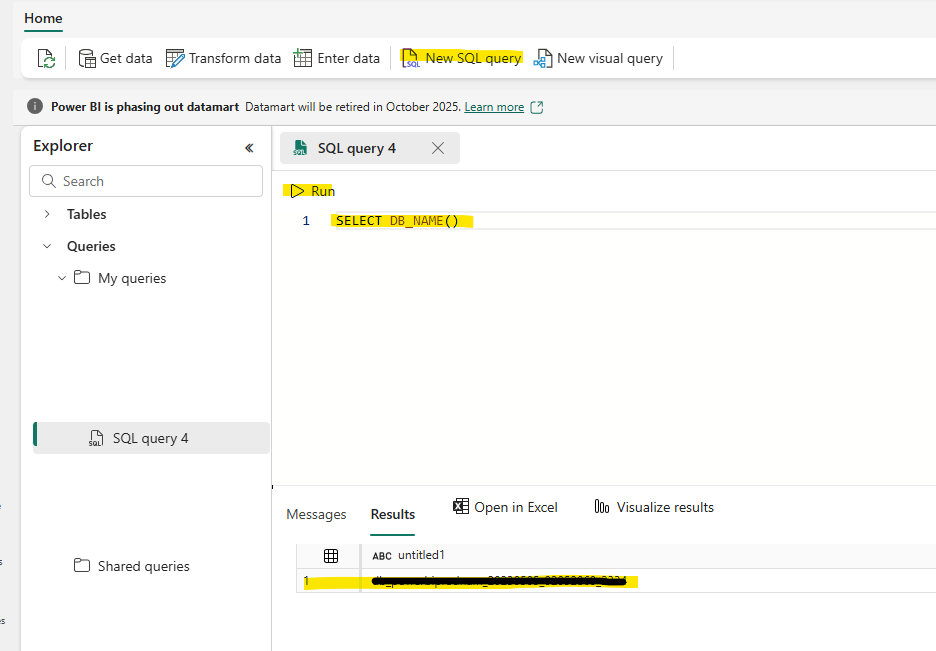
Open the Datamart. Select “New SQL Query” > SELECT DB_NAME() > RUN > Copy
Datawarehouse Server Address:
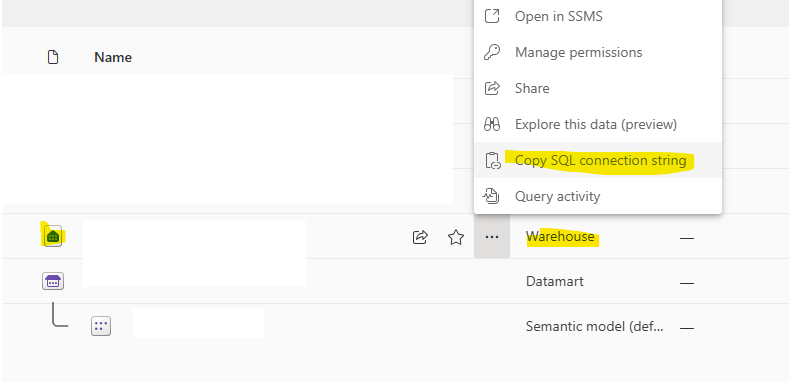
Click on the three ellipses next to type WAREHOUSE in the Workspace and Copy the SQL Connection String.
Datawarehouse Name:

This is the Name of your Warehouse (Red).
Schema Name:
Whatever you want – Placeholder “Datamart”
Tenant ID:
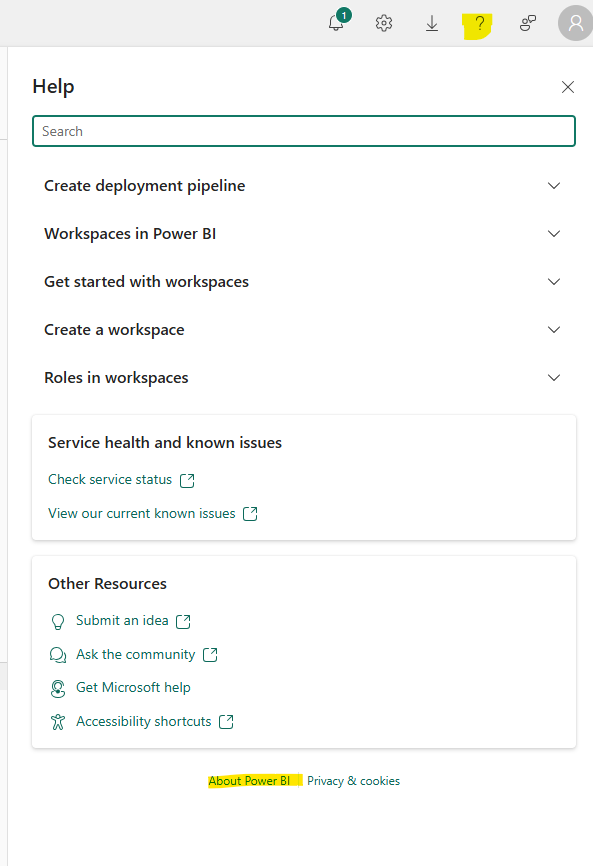
Click on the Question Mark in the upper right corner, then click on About Power BI.
Tenant URL = Copy the GUID after [ctid=] This is your tenant ID
Part 1 of Migration: Download PowerShell script via GitHub & Run
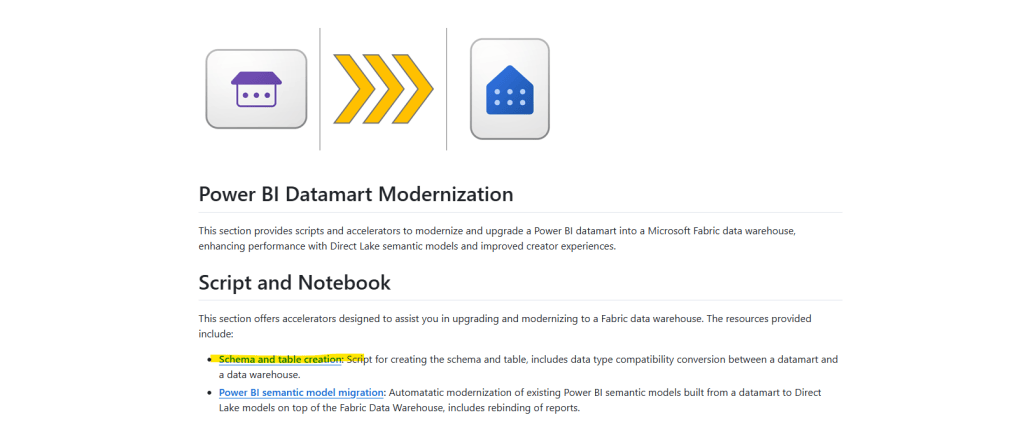
An Accelerator allows you to run PowerShell Script to automate a process. The Link to the Microsoft GitHub Repo is below. You will want to download the code under “Schema and Table Creation”
Link to GitHub: fabric-toolbox/accelerators/power-bi-to-fabric-data-warehouse-modernization at main · microsoft/fabric-toolbox
Part 2 of Migration: Open the Script in PowerShell ISE (Run as Admin)
Once the script is open and visible on your codebox, hit the Green Run Button). As the script works to run it will ask you for the information you collected in Step 1.
Step 2: Semantic Model Migration
Upon completing Step 1, you will be able to go into your Fabric Workspace and see your Warehouse has been created with your tables imported under dbo.
HOWEVER, this is just your base. Steps 1 & 2 created a foundation. Now it is time to migrate your Model. Like step 1 this will require some additional data to be gathered.
| datamart_workspace_name | This is the name of the workspace containing the datamart semantic model. |
| datamart_dataset_name | Specify the name of the datamart semantic model. (The name of the semantic model that is “hooked” to the datamart”. |
| semantic_model_workspace_name | Specify the name of the workspace containing the new semantic model will be stored. This can be the same as the datamart workspace. |
| semantic_model_name | This will be a new name assigned by you. [No Search Required] . |
| item_workspace_name | Specify the name of the workspace containing the data warehouse that the datamart was migrated to. This may be the same as your datamart_workspace_name. |
| item_name | The name of your Data Warehouse. |
| schema_name | Specify the name of the schema where the data is stored in the data warehouse. This is the same from Step 1!! |
| item_type | Warehouse. |
Step 3: Download the PowerShell Migration Notebook
You can download this from GitHub
Step 4: Complete Migration
You are now ready to Migrate your Data and Models into your Notebook. You can find more information related to this on the Tales from the Field Video or on the Github Repo.
Personally, I think the accelerators are more complex and error prone than manual migration. If you would like to manually migrate your Datamart, see my manual migration post on Thursday September 11th.
Reminder: Datamarts will be deprecated on Oct 1.
 Not a Pickle
Leave a comment