

Dear readers, I hope each and every one of you had a joyous and fulfilling start to the new year. As we embrace the opportunities that 2024 unfolds before us, I am thrilled to embark on another year of shared learning and exploration.
In this blog post, our focus shifts towards the fundamental aspects of Power BI Service, as we go back to the basics and delve into the intricacies of user interface features of Workspaces. Join me in rediscovering the foundations that empower us to leverage the full potential of Power BI, making our analytical endeavors more intuitive and impactful.
This exploration into the user interface features of Power BI Service Workspaces stems from a profound realization in my continuous journey with the platform…. The more intricately I create semantic models within Power BI Service, the more I uncover unexpected gems—those delightful easter eggs that enhance the overall user experience. It’s the subtle nuances, the hidden functionalities, and the thoughtful design elements that elevate the Power Platform from a mere tool to a dynamic and engaging environment for data analysis.
Through this blog post, I aim to share these discoveries, shedding light on the often-overlooked features that can significantly amplify your proficiency in crafting meaningful insights using Power BI Service Workspaces.
Workspace Icons
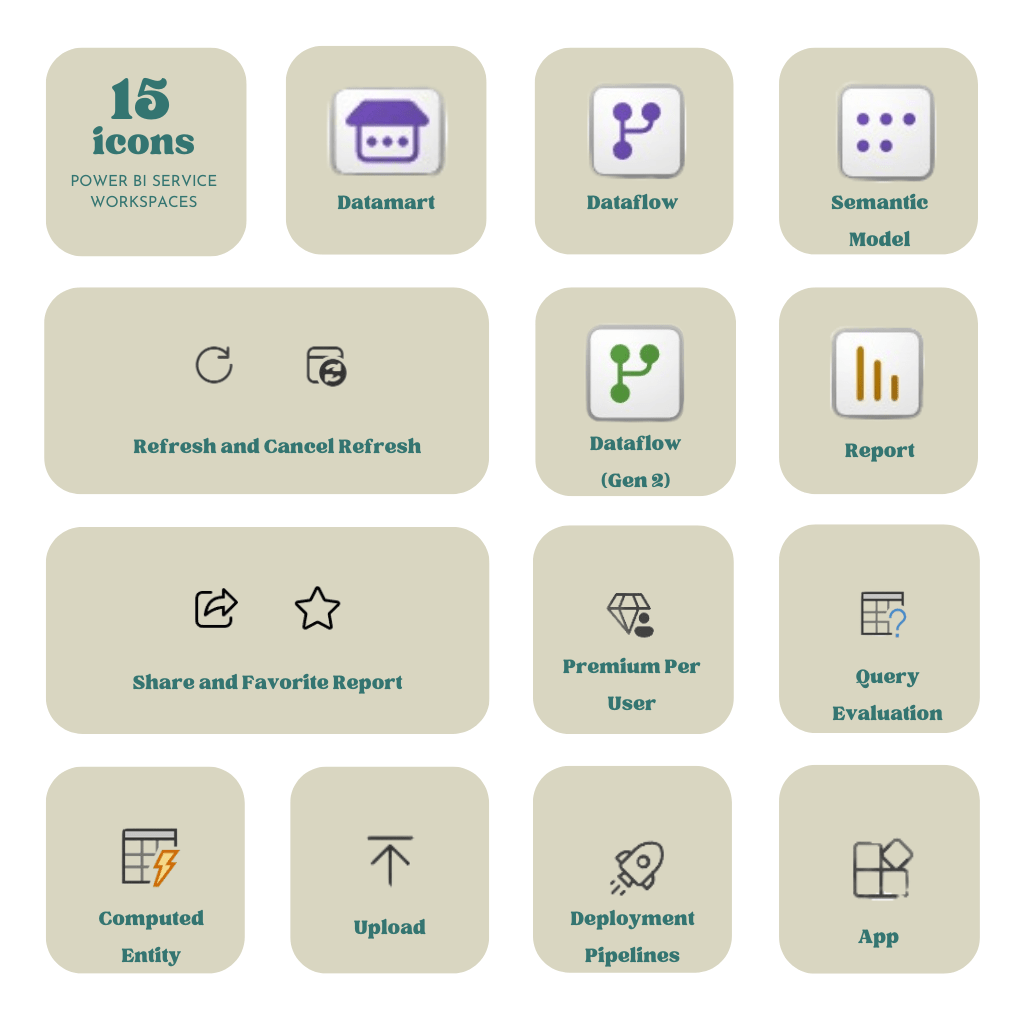
| Name | Description |
| Datamart | Datamarts should be considered when you want to create a self service database. Its main intention was to bridge the gap between IT and standard business users. A datamart is based on a relational and fully managed Azure SQL database. |
| Dataflow | Dataflows are ideal for tables that are often reused across an organization. You can use Power Query Online to create and carry out all ETL processes to share in a nice package to other users. Another important note here, that is Dataflows are able to leverage Azure Data Lake Storage. |
| Semantic Model | A semantic model in Power BI Service is a structured representation of data that defines relationships and hierarchies, enabling users to create meaningful reports and analyses. It provides a business-friendly view of the underlying data, abstracting the complexity of the data source and enhancing the user’s ability to interact with and understand the information. |
| Refresh and Cancel Refresh | When hovering over a model in Power BI Service, you can opt to manually refresh the data. This does not count towards your licensing scheduled refresh limitation. You can also opt to cancel a refresh. |
| Dataflow (Gen 2) | Dataflow Gen 2 comes with the arrival of Microsoft Fabric. Allowing for more support from sources such as Fabric Lakehouse, Azure Data Explorer, and Azure SQL base. Dataflow Gen 2 also offers increased performance related to transformations and an enhanced compute engine. |
| Report | In Power BI, a report is a visual representation of data insights created using various visualizations such as charts, tables, and graphs. |
| Share and Favorite Report | When hovering over a report in Power BI Service, you can opt to share or favorite a report. You can share by email, link, Teams, or PowerPoint. Keep in mind organizational limitations and licensing requirements. If you find yourself using a report often you can opt to favorite the report for easy access on your Home screen experience. |
| Premium Per User | Power BI Premium per User is a licensing option in Power BI Service that provides dedicated resources for individual users, offering enhanced performance and capabilities compared to the standard Power BI Pro or Free license. |
| Query Evaluation | Often when opening a semantic model in Power BI Service, users will see this as queries populate data in order to carry our ETL transformations. |
| Computed Entity | A Computed Entity is generated when you reference another query. |
| Upload | Upload a .pbix or .rdl file to your Workspace. You can do this by using OneDrive for Business, SharePoint, and system files. |
| Deployment Pipeline | In Power BI Service, a deployment pipeline is a set of sequential stages designed to move Power BI content, such as reports and datasets, through various environments (e.g., development, testing, production) in a systematic and controlled manner. |
| App | In Power BI Service, an app is a collection of one or more Power BI reports from a Workspace mashed together to create a personalized report to distribute specific analytics to a defined audience. It is also a great tool to avoid multiple report tabs open. |
In conclusion, understanding the nuances of Power BI’s user interface is not just a matter of current convenience but an investment in future proficiency. As the platform evolves over time with updates and enhancements, being familiar with the Power BI icons becomes increasingly crucial to elevate your experience and efficiency. These seemingly small details can make a significant difference in how you navigate, analyze, and present data. In my next post, we’ll take a closer look at the Power Query icons and delve into the intricacies of the user interface, continuing our journey to empower ourselves with a comprehensive understanding of Power BI Service Icons.
Want more? Check out these additional resources 🙂
Power BI Icon Repository
Create a Power Bi Diagram in Draw.io
 Not a Pickle
Leave a comment