

In the intricate landscape of Power BI, the seamless functioning of reports relies significantly on their interaction with Power BI datasets. At the core of this interaction lies the essence of data caching, where datasets serve as reservoirs harboring information drawn from diverse sources. This reservoir of information is stored in a highly optimized manner, engineered to facilitate analytical queries with unparalleled speed, offering users a dynamic and responsive experience.
However, the dynamic nature of data introduces a nuanced challenge known as data latency. As time progresses, the once-vibrant information nestled within the dataset can gradually become outdated, reflecting a misalignment with the current state of the underlying data sources. This temporal lag poses a potential threat to the accuracy and relevance of analytical insights derived from the Power BI reports.
To address this, the idea of periodic dataset refreshes emerges. These refreshes serve as the mechanisms through which the cached data undergoes a rejuvenation process, aligning itself with the most recent updates from the source. In essence, this cyclic process mitigates data latency, ensuring that the analytical queries processed by Power BI reports are founded on the most up-to-date and accurate information available.
Understanding the intricacies of dataset refreshes in Power BI becomes pivotal for users seeking to harness the full potential of their reports.
Power BI Desktop:
- Purpose:
- Design and Development: Power BI Desktop is primarily used for designing and developing Power BI reports and dashboards. It provides a robust environment for creating data models, defining relationships, and crafting visually compelling reports.
- Data Loading:
- Local Processing: Power BI Desktop performs data processing locally on your machine. It enables users to import data from various sources, transform it, and create a data model within the desktop application.
- Data Refresh:
- Manual: Data refresh in Power BI Desktop is a manual process. Users need to refresh the data manually by clicking the “Refresh” button within the application.
- Licensing:
- No Additional Licensing: Data refresh in Power BI Desktop is included with the Power BI Desktop application. No additional licensing is required for refreshing data locally during the development phase.
Power BI Service:
- Purpose:
- Sharing and Collaboration: Power BI Service is the cloud-based platform where Power BI reports and dashboards are published for sharing, collaboration, and consumption by a broader audience.
- Data Loading:
- Cloud-Based: Power BI Service operates in the cloud, and data connectivity is established to on-premises and cloud-based data sources. Datasets can be loaded into the Power BI Service directly or connected to on-premises data gateways for secure data access. You can also create Datamart’s, Data Flows, and Data Lakes (MSFT Fabric) from directly within service.
- Data Refresh:
- Scheduled or On-Demand: Data refresh in Power BI Service can be scheduled to occur at specific intervals (daily, multiple times a day, etc.) or initiated on-demand. Scheduled refresh is available for datasets hosted in the Power BI cloud service.
- Licensing:
- Licensing Requirements: Power BI Pro or Premium licensing is required for scheduled data refresh in Power BI Service. Power BI Free users can perform manual refreshes on a limited basis, but scheduling requires a higher-level subscription – read more about Free User limitations and availability here.
How to Refresh in Power BI Service:
Scheduled Refresh:
- Power BI Pro (10$/User/Month):
- Power BI Pro users can schedule up to 8 refreshes per day for a dataset. This includes both datasets hosted in the Power BI Service and datasets connected to the Power BI service using a gateway.
- Power BI Premium (20$/User/Month):
- Power BI Premium offers increased flexibility and scalability. Depending on the specific SKU (P SKU) of Power BI Premium, users may have the ability to schedule more frequent refreshes compared to Power BI Pro.
- With dedicated cloud capacity (P SKU), users can have up to 48 refreshes per day.
It’s important to note that Microsoft might update its service offerings, plans, and limitations over time, and these details could change. Therefore, it’s recommended to check the official Microsoft Power BI documentation or the Power BI service itself for the most up-to-date information on refresh limits and capabilities.
On-Demand Refresh:
- Power BI Service: In the Power BI Service, navigate to the dataset, and use the “Refresh Now” option to initiate an on-demand refresh. This is useful when immediate updates are needed.
Using Power Automate to bypass Premium Capacity Refresh Limitations
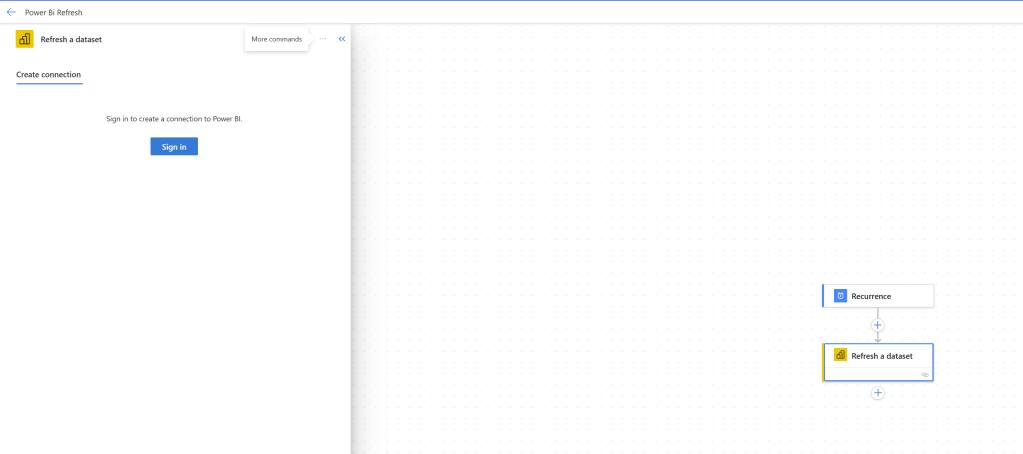
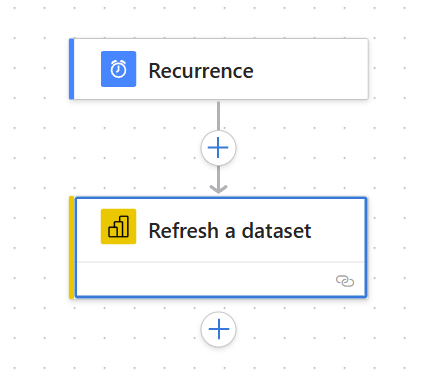
Power Automate offers a useful Action called “Refresh a Dataset” allowing you to update your data whenever you need. If you’re using Power Automate without a premium subscription, you’re still restricted to 8 data refreshes each day. However, with a Premium license, your only limitation is the speed at which the refresh happens. The cool thing is, because Power Automate allows you to schedule flows, you get to have total control over when your dataset refreshes. This flexibility in scheduling means you can align your data updates with your business needs, making sure everything is up-to-date exactly when you want it to be.
To configure a scheduled refresh in Power Automate:
- Access Power Automate:
- Open Power Automate in your web browser.
- Create a New Flow:
- Click on “My Flows” in the left sidebar.
- Click on “New” and select “Scheduled – from blank” to create a new flow.
- Set Trigger:
- Choose the trigger “Recurrence” to schedule the flow to run at specified intervals.
- Configure Recurrence:
- Set the recurrence pattern based on your refresh schedule (e.g., daily, weekly).
- Specify the start time and time zone for the recurrence.
- Add Action:
- Click on the “+” icon to add a new action.
- Search for and select “Power BI” as the service.
- Choose Action:
- Select the “Refresh a Dataset” action from the available Power BI actions.
- Sign In to Power BI:
- If prompted, sign in to your Power BI account to allow Power Automate to access your Power BI datasets.
- Select Workspace and Dataset:
- Choose the workspace where your Power BI dataset is located.
- Select the specific dataset that you want to refresh.
- Save and Test:
- Save your flow.
Depending on Dataset size, you may want to be weary of scheduling too many refreshes, as this can be taxing on resources or cause refreshes to fail due to “running into each other”. However, if used wisely – Power Automate is a great tool to use to give more flexibility in refresh scheduling.
Overall, refreshing data in Power BI is crucial because it ensures that the information in your reports and dashboards stays accurate and up-to-date. Think of it like having a reliable friend who always gives you the latest news – data refresh is Power BI’s way of keeping you informed with the most recent and relevant insights. By regularly updating your datasets, you can trust that the numbers and trends in your reports reflect the current state of your business, helping you make informed decisions based on real-time information. So, just like you wouldn’t want old news, you don’t want outdated data – refreshing keeps your reports sharp and your analyses on point!


Leave a Reply