

Hey there, did you know that Power BI is like a secret agent with its own set of shortcuts? Yep, it’s true! Power BI isn’t just a superhero of data visualization; it’s also got a few nifty tricks up its sleeve to make your life easier. So, if you’ve ever felt like you’re navigating a data jungle and wish you had a shortcut machete, well, Power BI’s got your back. Time to trade in your data explorer hat for a detective’s magnifying glass and uncover the hidden gems of efficiency in the world of Power BI shortcuts.
Ready to unlock the door to data wizardry? Keep reading to let the shortcut adventure begin!
If you would like to explore on your own, I would first like to show you how to pull up the pop-up menu within Power BI (which is actually a shortcut in itself!)
To pull up the short cut menu, use the shortcut short cut by pressing Shift+ ?
What is great about this is that it can be viewed directly within Power BI. However, if you would like to view more shortcuts there is a link that takes you directly to the Microsoft Learn page with all available shortcuts! For your convivence, here is that same link.
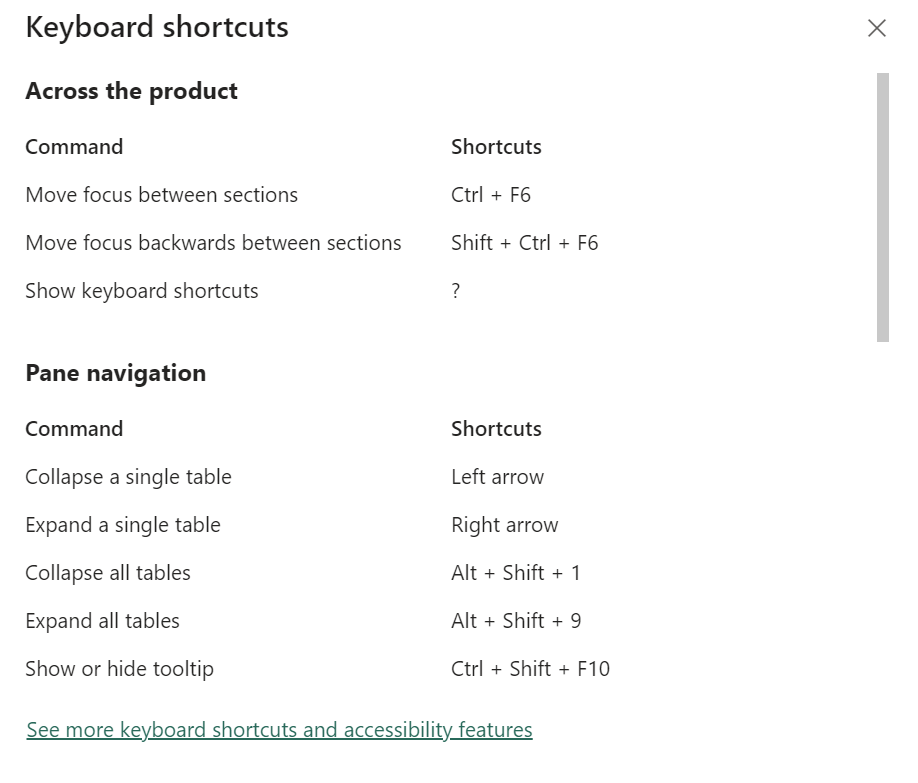
In addition to applying these keyboard shortcuts in Power BI Desktop, they are effective in the following experiences as well:
- Q&A Explorer dialog
- Getting Started dialog
- File menu and About dialog
- Warning bar
- File Restore dialog
- Frowns dialog
As part of Microsoft’s ongoing commitment to enhancing accessibility, the aforementioned list of experiences also accommodates screen readers and high contrast settings.
My Most Frequently Used Shortcuts (Across BI)
Creative Report Designer/Canvas
| Create a New Report | Ctrl + N |
| Copy Visual // Paste Visual | Ctrl + C // Ctrl + V |
| Move a Visual (Micro Moves) | Arrow keys |
| Move a Visual (Large Moves) | Shift + arrow keys |
| Expand Matrix | Shift + Right arrow key |
| Collapse Matrix | Shift + Left arrow key |
| Activate Selection Pane | F6 |
Power Query Shortcuts
| Go to Column | Ctrl + G |
| Get Data | Ctrl+Alt+D |
| Advanced editor | Ctrl+Shift+M |
| Add custom column | Ctrl+Alt+C |
DAX Shortcuts
Ctrl + Enter or Enter
| Expand or Collapse DAX formula bar | Ctrl + J |
| Add Lines | Shift + Enter |
| Increase font size | Ctrl + + or Scroll Up |
| Select all occurrences of current word | Ctrl + F2 |
As we wrap up this journey through my favorite Power BI shortcuts, I hope you’ve discovered some new tricks to add to your arsenal of data wizardry. Remember, efficiency is the name of the game, and these shortcuts are your secret weapons. But hey, the fun doesn’t stop here! In the next blog post, we’ll dive into the fascinating world of DAX Commenting and Applied Steps Commenting functionality.
Get ready to sprinkle some storytelling magic on your data transformations and analyses. Stay tuned for more Power BI goodness, and may your data adventures be as seamless as these shortcuts make them! Happy analyzing!


Leave a Reply