

Often times – I will run into the following scenario:
“Savannah, can you create me a report that shows my archived Sales Orders coming out of Business Central using Power BI? However, some orders have multiple revisions… so I only care about what is most recent. Can you do this?’
Throughout this blog post I will explore what features in Business Central can be archived, how to ensure that those features are enabled, and a few different ways of creating a Power BI report that only reflects the most recent revision.
Why are archives important?
Having a record of archived records in Business Central is essential for several reasons:
Compliance and Audit Purposes: Businesses often need to comply with legal and regulatory requirements that mandate the retention of historical data. Business Central’s archived records feature ensures compliance by securely storing past transactional data for audit purposes.
Historical Analysis and Reporting: Archived records provide a historical database that enables businesses to conduct in-depth analysis and generate accurate reports. This historical data is invaluable for identifying trends, forecasting future outcomes, and making data-driven decisions.
Customer Relationship Management: Businesses can maintain a detailed history of customer interactions, purchases, and preferences. This information fosters personalized customer relationships, allowing for targeted marketing strategies and improved customer service.
What can be archived in Business Central?
In Business Central you can archive”
- Sales Orders*
- Purchase Orders*
- Quotes,
- Return Orders
- Blanket Orders
*Sales and Purchase Orders can be archived multiple times, with each time providing a new Version No.
Turning on Archives in Business Central
In order to turn on Archives in Business Central you will follow the following steps:
Once you turn on Archives in Business Central, data will begin to automatically archive your data when the following actions take place:
- Changes or deletes a document.
- Prints, downloads, or sends a document by email.
- Converts a quote to an order or invoice.
- Posts an order.
In the following example I will show you how to show the most recent revision Archived Sales Orders. You could also include your Open Sales Order in this Report if you would like. This would be a practical example related to what Sales were booked for a particular month.
Not a Pickle!:Demo/Example
In this example, I have already turned-on Archives and have Archived a few Sales Orders.
We will connect Power BI to Business Central using the Business Central Connector (Odata). You will want to make sure you have the Sales Order Archives Page Enabled in Web Services
Business Central Web Service View:
Page > Object ID: 9349 > Sales Order Archives

Power BI Business Central Connector:
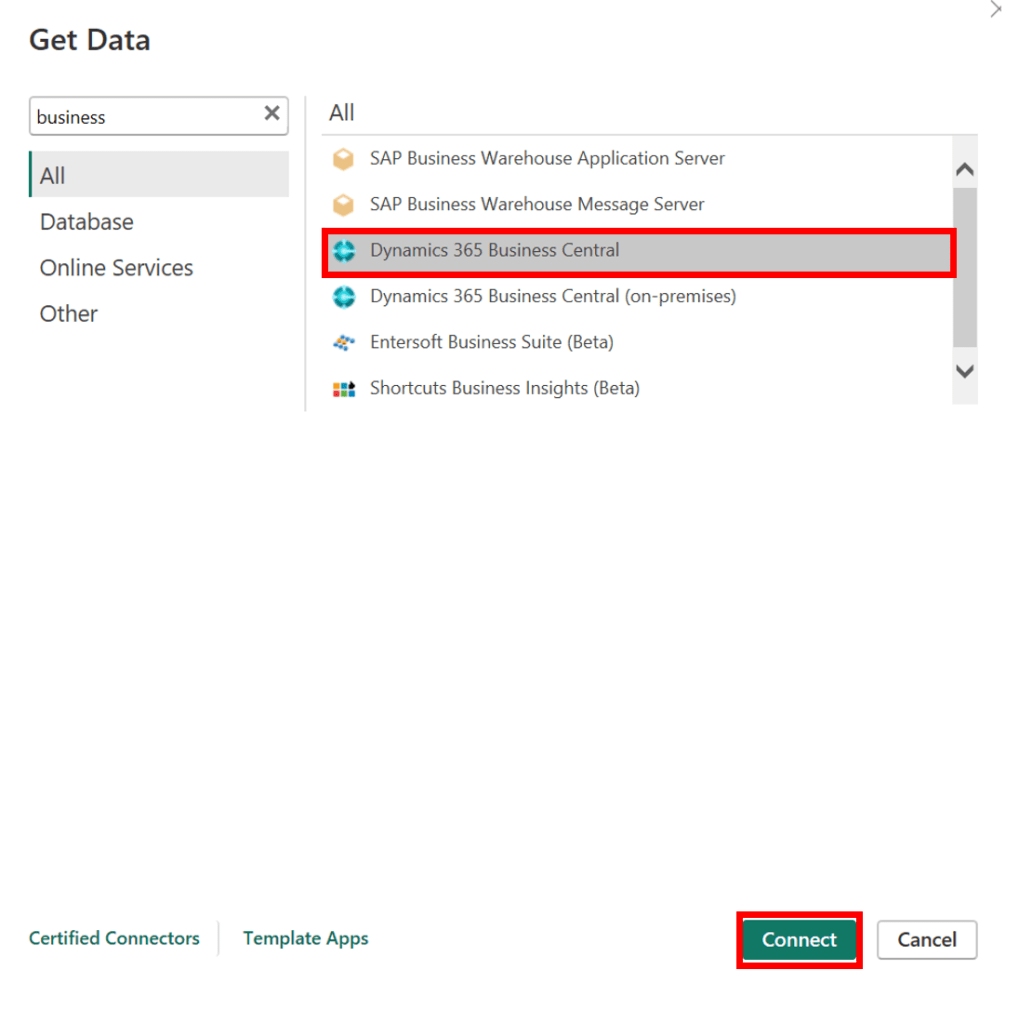
Once you hit “Connect” you will be able to enter your Business Central Credentials, select your correct Environment, and find the “SalesOrderArchive” Web Service that you created earlier. During this step, you could also select your SalesOrder Page, if you would like to include Open and Archived Orders in your Report. In this example, I will just be showing how to get the most recent revision of your Archived Sales Orders based on the Version No.
Here is my view of the Sales Archive Table. I have removed other columns during my ETL Process in order to keep data clean.
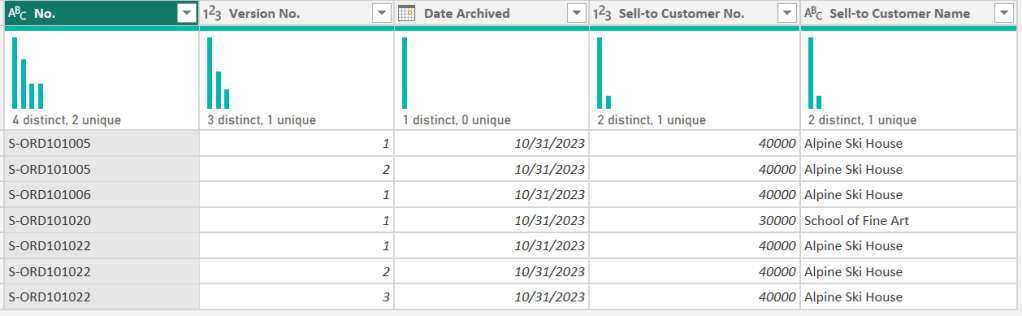
You will notice that some Sales Orders have just one archive while others have multiple.
In order to show the most recent revision we can do this in a few different ways, altering the “M” Code or using transformative tools in the Power Query Editor.
Altering the M
- Go to “Transform Data” on the “Home” Tab of the Ribbon. This will open Power Query Editor.
- Once you are in the Power Query Editor, go to the “Transform” Tab and select “Group by”
- Group By the Order No (No.) using the following directions:
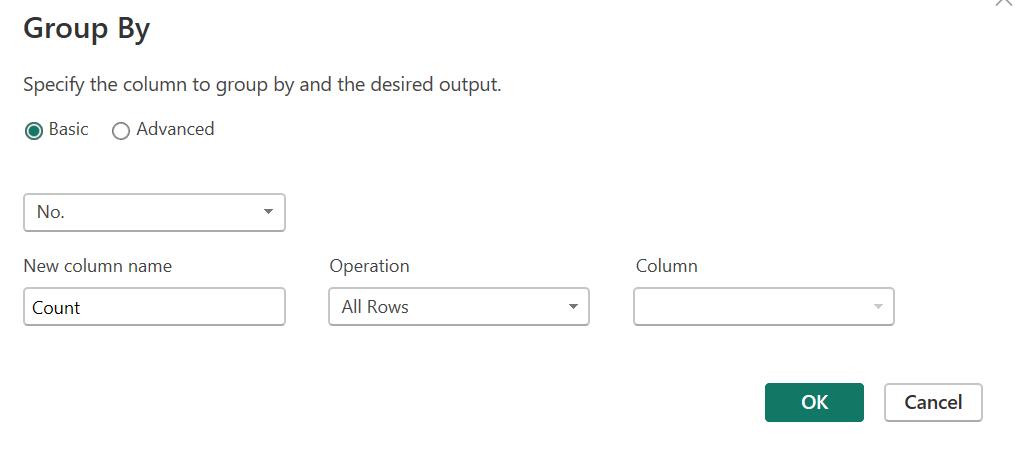
4. Your query will now look like this. In step 5, we are going to actually edit the code that Power BI created for us in our Group By Step:
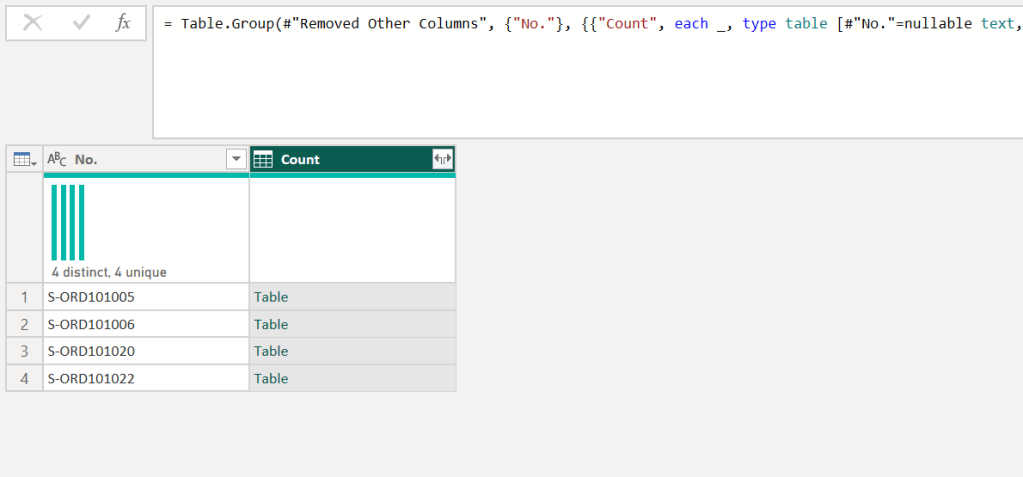
5.
Original Code:
= Table.Group(#”Removed Other Columns”, {“No.”}, {{“Count”, each _, type table [#”No.”=nullable text, #”Version No.”=nullable number, Date Archived=nullable date, #”Sell-to Customer No.”=nullable number, #”Sell-to Customer Name”=nullable text]}})
Altered Code:
= Table.Group(#”Removed Other Columns”, {“No.”}, {{“Count”, each Table.Max(_, “Version No.”)}})
Your Query will now look like this:
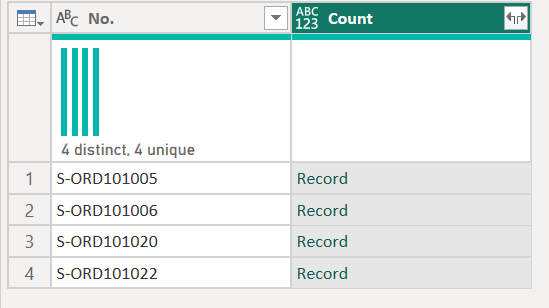
If you were to actually click on “Record” you will see all details filtered to the Maximum Revision or Version No.
6. The last thing we will do, is expand our “Count” Column. Select everything except the “No.” (We already have this information). Your ending query will have the most recent revision of your Archived Sales Order.
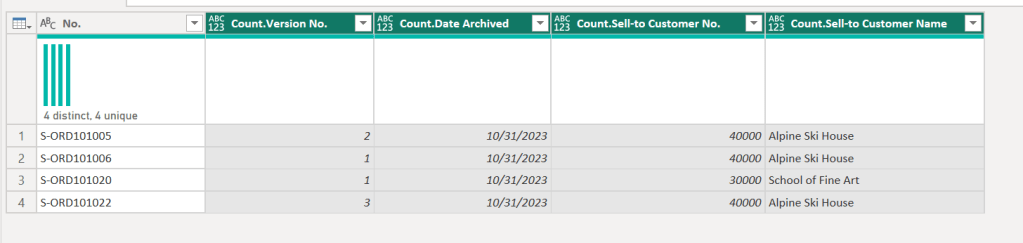
Group By/Power Query Tools
The following method will get you the same results. in a more beginner friendly way.
- Go to “Transform Data” on the “Home” Tab of the Ribbon. This will open Power Query Editor.
- Once you are in the Power Query Editor, go to the “Transform” Tab and select “Group by”. Use the following grouping:
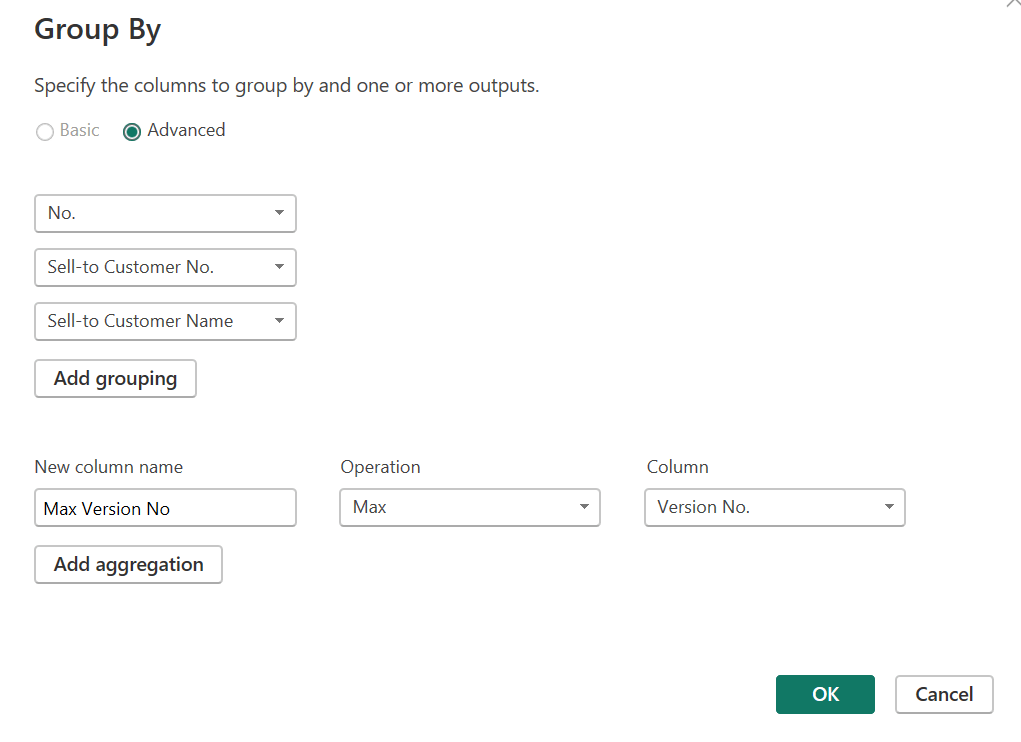
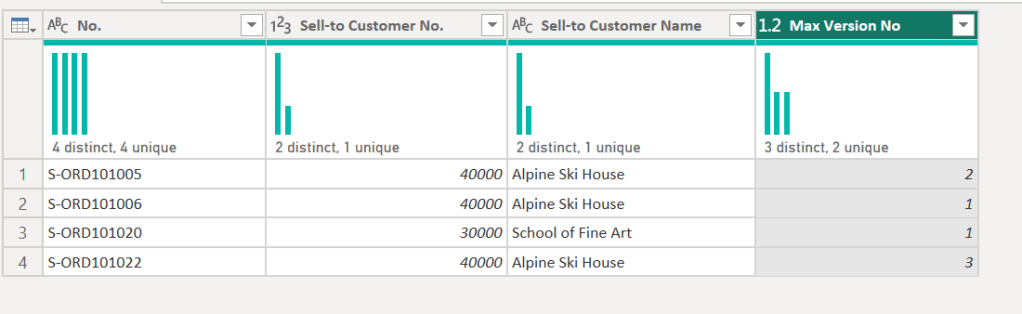
3. As you can see, our end result is the same as the previous alteration.
The main point I would like to make with this blog post (besides showing off a cool and useful Power BI Tip) is that there are many ways to achieve the same end result within Power BI. Whether you are a novice or a veteran, there can be many ways to manipulate your data to massage the data to meet report requirements. If one method isn’t working for you as a report creator, I encourage you to explore other avenues.
Source Lab Files:
NotaPickle/LabAssets: Repository for Not a Pickle Blog Demos and Examples (github.com)
Additional Resources:
Archive Sales and Purchase Documents – Business Central | Microsoft Learn
Get started with Power BI Desktop – Power BI | Microsoft Learn

 Not a Pickle
Leave a comment